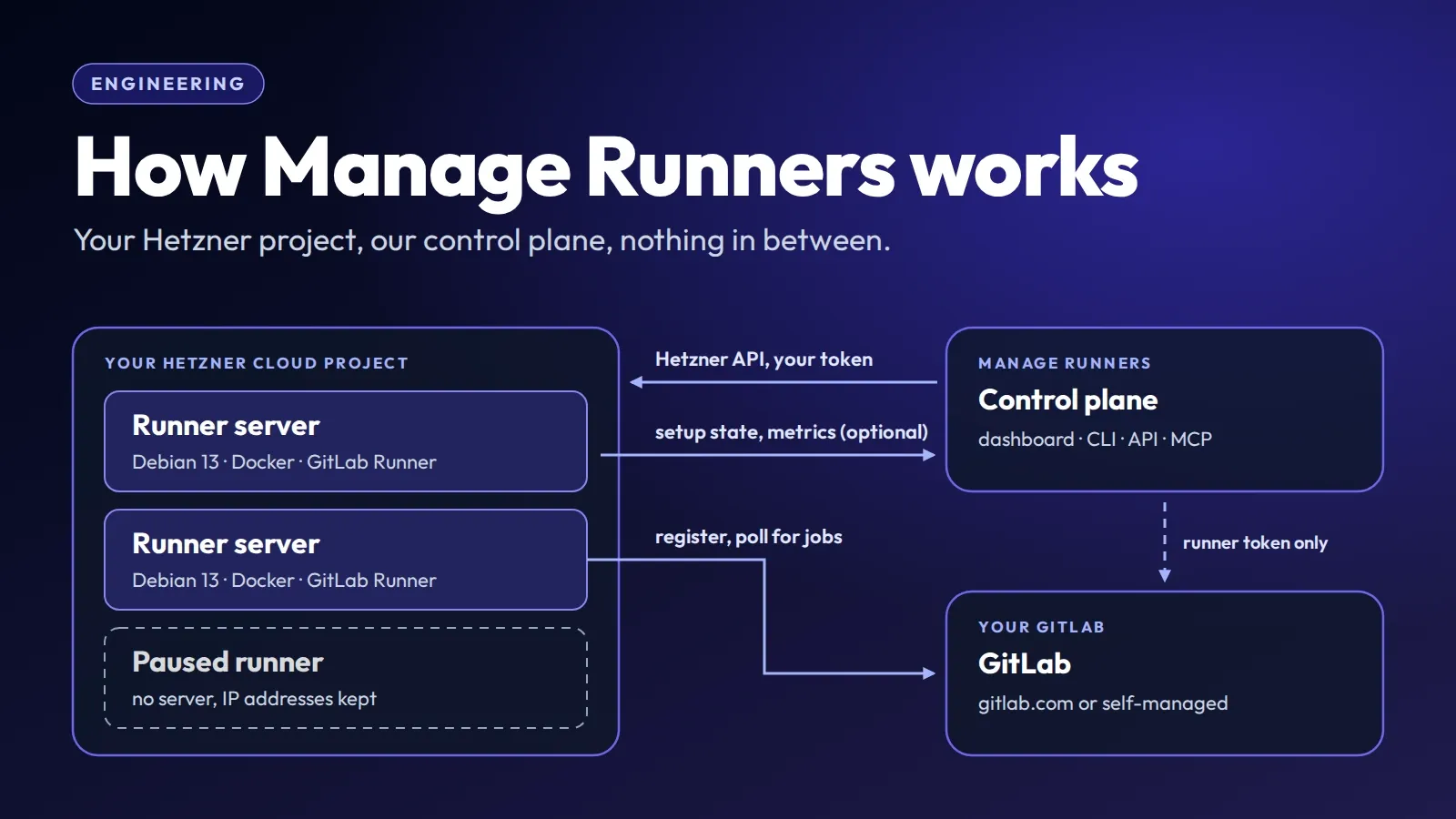
Manage Runners creates and operates self-hosted GitLab runners on Hetzner Cloud. Each runner is a server in your own Hetzner project, and you manage it from a dashboard, a CLI or an AI assistant instead of by hand.
This article explains how that works under the hood. Most of it follows from one idea: replace rather than reconfigure. Settings that shape a server’s setup take effect on a new server. Pausing deletes the server; resuming provisions another from the stored configuration. That is why Manage Runners never needs to log in to your servers, why some edits interrupt jobs, and why a runner can’t move to another location.
Your account, our control plane, nothing in between
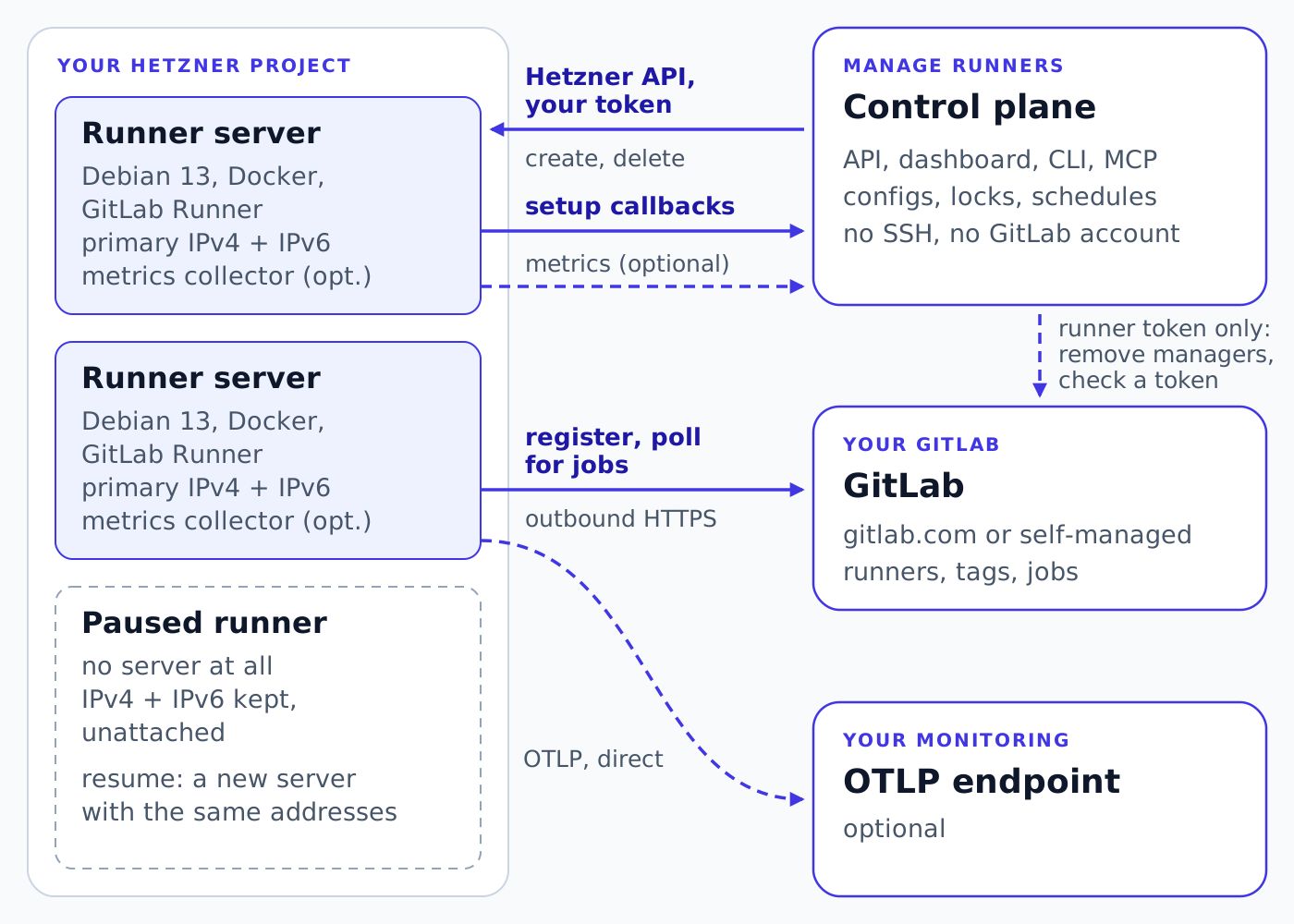
Your Hetzner Cloud project holds the servers. Every server is created with the read and write API token you give Manage Runners, in that project, on your Hetzner bill. Manage Runners creates two kinds of Hetzner resources there: one server per active runner, and a primary IPv4 and IPv6 address for each. It creates no firewalls, networks, volumes or SSH keys. Because the token can do anything in its project, use a project that contains only your runners.
Your GitLab instance, gitlab.com or self-managed, owns the runner. You create it in GitLab, with its tags and settings, and copy its runner authentication token into Manage Runners. From then on the server does the work with GitLab: it registers with that token and polls for jobs over outbound HTTPS, like any GitLab Runner.
The Manage Runners control plane stores the runner’s configuration, calls the Hetzner API and serves the dashboard, the API, the CLI and the MCP server for AI assistants. It calls GitLab only with the runner authentication token, on two runner endpoints that GitLab Runner itself uses:
- When it deletes a server whose GitLab system ID it has recorded, it requests deletion of that server’s runner manager with
DELETE /api/v4/runners/managers, the request GitLab Runner sends to unregister one machine. It never deletes the runner itself. - When an external runner’s autoscaling settings are first saved, or their GitLab host or runner token changes, it checks the token with
POST /api/v4/runners/verify, then requests removal of the temporary manager that check registers.
It has no GitLab account or access token and doesn’t read your projects, pipelines or jobs. Your jobs, their logs and their artifacts flow between the server and GitLab and never pass through us. When you create a runner, the first party to check its runner token is still GitLab, when the server registers.
Updated on 23 October 2026 to describe the two GitLab calls that came with autoscaling.
After a server has booted, traffic between it and the control plane goes one way. The server pushes: a few one-time callbacks while it sets itself up and, if enabled, a metrics sample about once a minute. The control plane never connects to the server. It has no SSH client, no SSH keys, and never logs in to a runner. Everything it knows about a server comes from Hetzner’s answers to its own API calls and from what the server reports.
So SSH is entirely yours. To log in, add your public key to the Hetzner project and select it for the runner; Hetzner installs it for root when it creates the server, and password login is disabled. Firewalls are yours too: Manage Runners doesn’t create one, and you can attach your own Hetzner firewall through a label selector, because a runner’s labels become Hetzner server labels. GitLab Runner only makes outgoing connections, so it needs no incoming rules.
The lifecycle of a runner
Creating a runner stores it in state CREATING and asks Hetzner for a server with:
- the server type and location you chose,
- Hetzner’s
debian-13image, - your selected SSH keys and your labels,
- the runner’s primary IPs, if it already has some.
The server sets itself up on first boot with cloud-init, which installs Docker and GitLab Runner from their official package repositories. The server then registers with GitLab using the runner authentication token, with the executor you chose, sets GitLab Runner’s global concurrent value to the runner’s concurrency, and upgrades the image’s packages in the background. Tags aren’t set here: with authentication tokens, they live in GitLab.
Along the way the server reports its progress through one-time callback URLs: once when setup starts (CONFIGURING), and once when registration has finished: READY if it succeeded, INVALID_GITLAB_TOKEN if it failed. (The dashboard calls READY Active.)
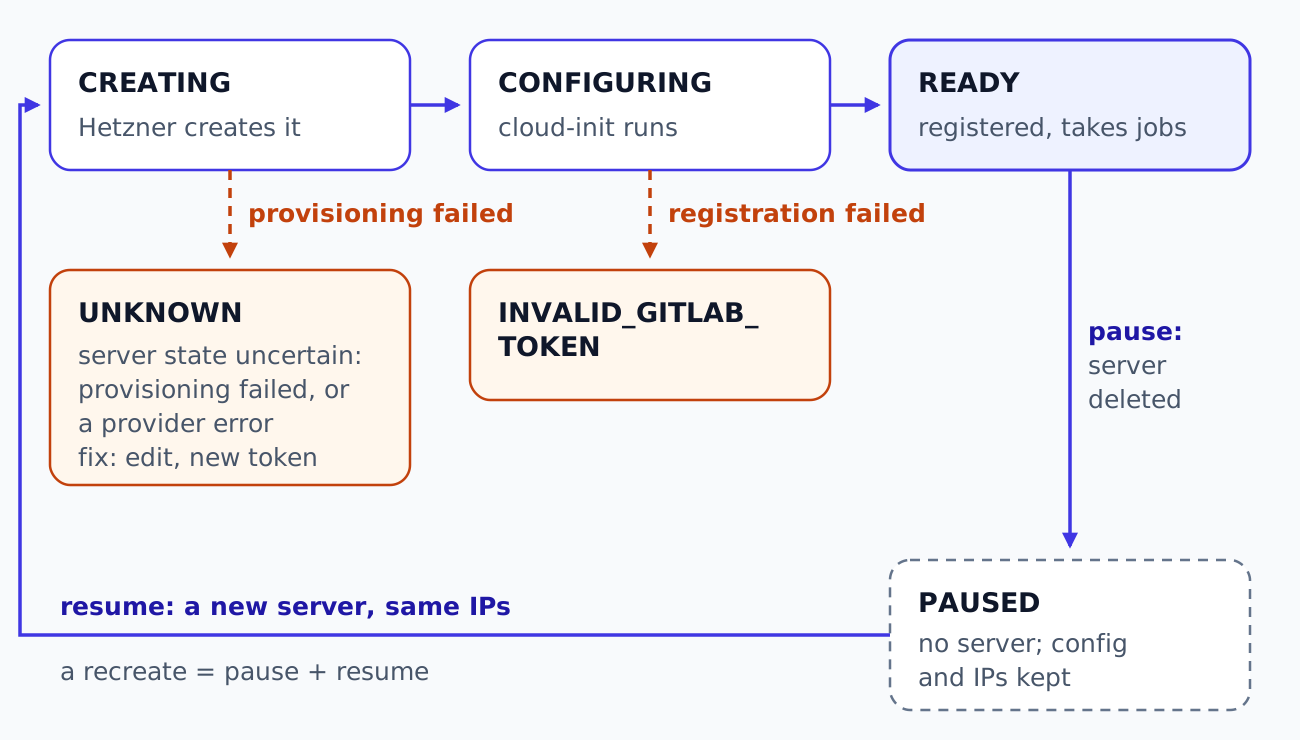
One state deserves a closer look. UNKNOWN means Manage Runners can’t confidently say what state the server is in. A failed provisioning or certain provider authentication failures can put a runner there. We could assume the server is gone, or still there. Either guess is sometimes wrong, and a wrong guess about a server you pay for is worse than an honest “we don’t know”.
To resolve it, you edit the runner with a working token, and Manage Runners asks Hetzner whether the server it last created still exists. If it does, the runner is active again, with metrics off until you turn them back on; if it doesn’t, the runner is paused and can be resumed. Removing an UNKNOWN runner only forgets it and leaves any server and IP addresses in your project for you to check. The same principle shows up in the CLI and the MCP tools: when a change ends with an unknown outcome, they tell you to look before you retry.
Replace rather than reconfigure
Some settings can change without replacing the server:
| Setting | On an active runner |
|---|---|
| Name | display name updated in Manage Runners |
| Labels | updated on the Hetzner server |
| Hetzner token | stored token updated |
| Server type (product) | new server |
| GitLab host or runner token | new server |
| Executor or concurrency | new server |
| SSH keys | new server |
| Cache | new server |
| Metrics settings | new server |
| Location | can’t be changed |
The settings in the second group are applied during provisioning. We apply a change by replacing the server rather than logging in to reconfigure it, which gives each recreation a fresh starting point.
A recreate is a pause followed by a resume, under one lock:
- Lock the runner.
- Pause it: keep its IP addresses and delete the server.
- Store the new configuration.
- If the runner was running before, resume it: create a new server with the same IP addresses.
The IP addresses make this bearable. Every server gets its public IPv4 and IPv6 addresses as Hetzner primary IPs, which exist independently of a server. Before deleting a server, Manage Runners marks both IPs to survive the deletion, and passes them in the create request for the next server. Allow lists, firewall rules and DNS records with a runner’s addresses keep working across every recreate, pause and resume.
That is also why a runner’s location can’t change. Primary IPs belong to a Hetzner location, so a runner in another location would need new addresses.
A recreate interrupts running jobs and starts a new server on your bill, so the clients make it explicit. The CLI asks for confirmation before any change that recreates a server, and in scripts refuses one without --yes. The MCP tools return a preview first and apply the change only once it is confirmed. In the dashboard, the edit form warns before you save a cache or metrics change, and changing a cache or metrics connection that several runners use lists the runners it will recreate and asks first.
Pause means delete
Pausing a runner doesn’t just power its server off. It deletes the server and keeps its IPs, as in a recreate. While a runner is paused, these persist:
- the runner’s configuration in Manage Runners,
- its primary IPv4 and IPv6 addresses in your Hetzner project, unattached,
- the runner entry in GitLab: pausing removes this server and requests removal of its runner manager, not the GitLab runner entry.
The server’s disk does not persist. What happens to running jobs is your choice. Pause after running jobs gives them time to finish: the runner is Pausing and takes no new jobs, and Manage Runners waits until they are done, or up to an hour, before requesting the server’s deletion. Jobs still running then can be interrupted, and Hetzner bills the server until it is deleted. Pause now deletes the server at once and interrupts the running jobs; on a pausing runner, it ends the wait. (Servers created before Manage Runners let jobs finish stop them right away.) Hetzner no longer bills a server, because there is none, but it does bill a primary IPv4 address that is not attached to a server, so a paused runner is cheap rather than free.
Resuming provisions a new server from the stored configuration with the same addresses. It goes through CREATING and CONFIGURING again and registers with GitLab again. Every resume installs a fresh Debian 13 machine and starts package upgrades, with nothing a previous job left on disk.
Schedules are built on exactly these two operations. A schedule has an IANA time zone, a start time, a stop time or a duration, and weekdays. Every minute, a planner checks each enabled schedule. The interesting part is the bookkeeping: each schedule remembers the last start and stop occurrence it has applied, and never applies one twice. In outline:
every minute, for each enabled schedule:
    start = the latest start occurrence at or before now, in the schedule's time zone
    stop  = start + duration, or the stop time on the same day

    if start <= now < stop and last_start_applied < start:
        resume the runner if it is paused
        last_start_applied = start

    if now >= stop and last_stop_applied < stop and the runner is active:
        pause the runner
        last_stop_applied = stop
Without it, schedule and person would fight. If you pause a runner by hand in the middle of its window, a naive planner would see “inside the window, runner paused” and resume it a minute later. With the bookkeeping, this window’s start has already been applied, so the runner stays paused until the next one. And because start and stop are computed in local time, 07:00 Berlin time stays 07:00 across daylight saving changes.
Correctness without extra infrastructure
All of this changes real servers in your account, so competing operations on one runner have to be rejected. A double click, a schedule firing during an edit, a CLI retry after a timeout: all ordinary events. We handle them without a distributed lock service or a job queue; the coordination lives in the database the control plane already uses.
Per-runner lease locks. Create, pause, resume and recreating edits use a per-runner database lease to reject competing operations while the lease is valid. The lease is a row in a lock table, keyed by the runner ID, so only one insert can win. It lasts ten minutes by default, so a process that dies while holding one doesn’t block the runner forever: after the lease, the next caller can take it over, and a version check lets only one caller win the takeover. Simplified:
-- Acquire: exactly one concurrent insert succeeds.
INSERT INTO runner_locks (runner_id, holder, expires_at, version)
VALUES (:runner, :caller, now() + INTERVAL 10 MINUTE, 0);

-- Take over an expired lease: the version check lets only one caller win.
UPDATE runner_locks
SET holder = :caller, expires_at = now() + INTERVAL 10 MINUTE, version = version + 1
WHERE runner_id = :runner AND version = :seen_version AND expires_at <= now();
Release checks the recorded user and uses an optimistic version check. Changes that affect several runners, such as editing an S3 cache that several running runners use, take all their locks or none. A competing operation on a locked runner fails with a clear “runner is locked” error.
Idempotency keys. manage-runners runner create and runner duplicate send an Idempotency-Key header, random per invocation or one you pass. Before it creates anything, the control plane claims the key for the user, organization and route, together with a hash of the request. For 24 hours, retrying with the same key and request replays the recorded result instead of creating a second server; the same key with a different request is rejected. When we can’t tell whether a request completed, the key stays claimed: a confusing “still in progress” is better than a duplicate server on your bill.
Two bugs shaped these safeguards.
The runner that was in no table. A runner’s lifecycle phase is the table its row lives in: active, paused, unknown or deleted. Moving a runner between phases, for example when pausing it, used to delete the row from one table and insert it into the other in two transactions. In between, the runner existed nowhere. An S3 cache can only be deleted while no runner uses it, and in that gap no runner pointed to the cache. A cache deletion that landed there went through, the insert that followed failed because its cache was gone, and the runner was lost. Now every move between tables is a single transaction. Calls to Hetzner stay outside it: a transaction shouldn’t wait on a remote API, and it can’t roll back a server Hetzner has already created.
Every check before the delete. A recreate deletes the old server before it creates the new one. In one version, a check that belonged at the start ran only while creating the new server: whether the organization’s plan still covered the metrics collector. When it failed, the old server was already gone and the runner was left paused. We moved the plan check ahead of the destructive work, so a refusal leaves the runner as it was. And if the plan ends while the old server is being removed, the restart no longer fails for that reason: the replacement boots without the collector. The lesson for any delete-then-create flow: ask what can still fail after the delete, and move it before.
Monitoring on a 32 KiB budget
Runners can report CPU, memory, swap and disk usage, and on GitLab runners the number of running jobs, to the dashboard and export it to your own OpenTelemetry backend. Both come from one small collector on the server, designed around two constraints: no third-party dependencies, and a size that fits Hetzner’s 32 KiB limit for a server’s user data.
The collector is a Python program that uses only Python’s standard library, no third-party packages. It reads /proc/stat, /proc/meminfo and the mounted filesystems, skips container and temporary mounts, and on GitLab runners reads the number of running jobs from GitLab Runner’s metrics endpoint, which listens only on the server itself. Beyond that count it sends nothing about your jobs. The program is gzip-compressed and base64-encoded to fit; in our largest test case, the user data comes to about 31 KiB.
It runs as a systemd service under its own unprivileged user, with NoNewPrivileges, a read-only view of the system, a private /tmp, a 64 MiB memory limit and 5% of one CPU.
The export to your backend is OTLP over HTTP: gzip-compressed protobuf, which the collector encodes itself, with the OpenTelemetry semantic conventions for system metrics (system.cpu.utilization, system.memory.usage, system.filesystem.usage and friends). It runs in a separate process, so a slow endpoint never delays the dashboard samples, and its last result, such as “credentials rejected”, shows up in the dashboard.
The direction matters here too. The server sends to your endpoint directly, and the control plane never connects to it. Your endpoint only needs to accept your runners’ IP addresses, and those stay the same for the life of a runner. Changing the collector’s settings requires a new server, like the other provisioning settings.
The trade-offs
This design makes choices you will notice:
- Recreating changes interrupt jobs. Schedule them when the runner is idle.
- Nothing on the disk survives a pause. Pulled images and local caches are gone after every pause and recreate. Use an S3 cache for what should outlive a server.
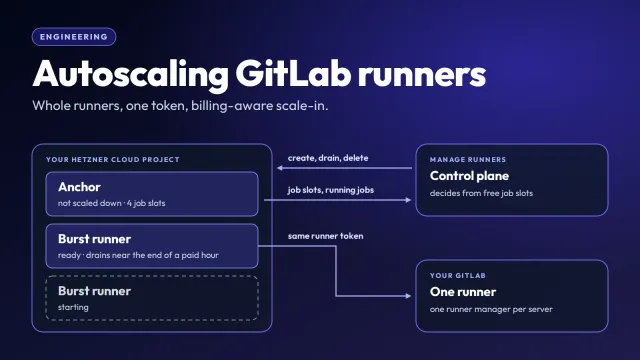
- A duplicate is a new runner. Duplicating a runner is one way to add capacity. The copy gets its own server and new IP addresses for your allow lists. On the Pro and Enterprise plans, autoscaling adds and removes servers for a busy GitLab runner for you; How autoscaling works for GitLab runners on Hetzner explains how.
- Paused runners keep their addresses, and Hetzner bills the IPv4 address.
In exchange, you get runners in your own Hetzner account, on your own bill, managed without SSH access and without us ever seeing a job.
If you want to try it, the quick start takes you from two tokens to a running runner. The concepts page has the full list of states and of the changes that recreate a server.